Resolving Sign-In Issues For macOS Desktop MFA In Okta
Last Updated:
Overview
Multiple sign-in issues occur when using macOS Desktop Multi-Factor Authentication (MFA) due to incorrect application assignments, time synchronization issues, or unsupported security keys. Verify application assignments, synchronize system clocks, and check key compatibility to resolve these errors. Specific symptoms include Okta Verify push failures, incorrect device access codes, and device access key errors.
Applies To
- Okta Identity Engine (OIE)
- Okta Device Access (ODA)
- Desktop Multi-Factor Authentication (MFA)
- macOS
Cause
Sign-in failures during macOS Desktop MFA can occur for several reasons, including missing application assignments, incorrect configuration profiles, unsynchronized system clocks, unsupported security keys, or macOS USB restriction modes that prevent key detection.
Solution
Why does the Okta Verify push fail immediately?
If the push fails immediately with an error message indicating that the push notification expired or declined, the user lacks assignment to the Desktop MFA application, or the push configuration in the organization is incorrect. Ensure the application assignment and configuration profile for Desktop MFA contain the correct values.
Incorrect application assignments cause Okta Verify code failures.
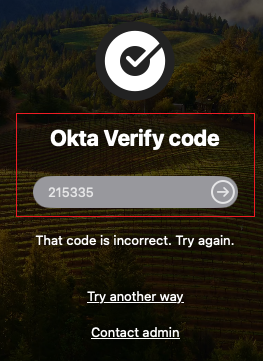
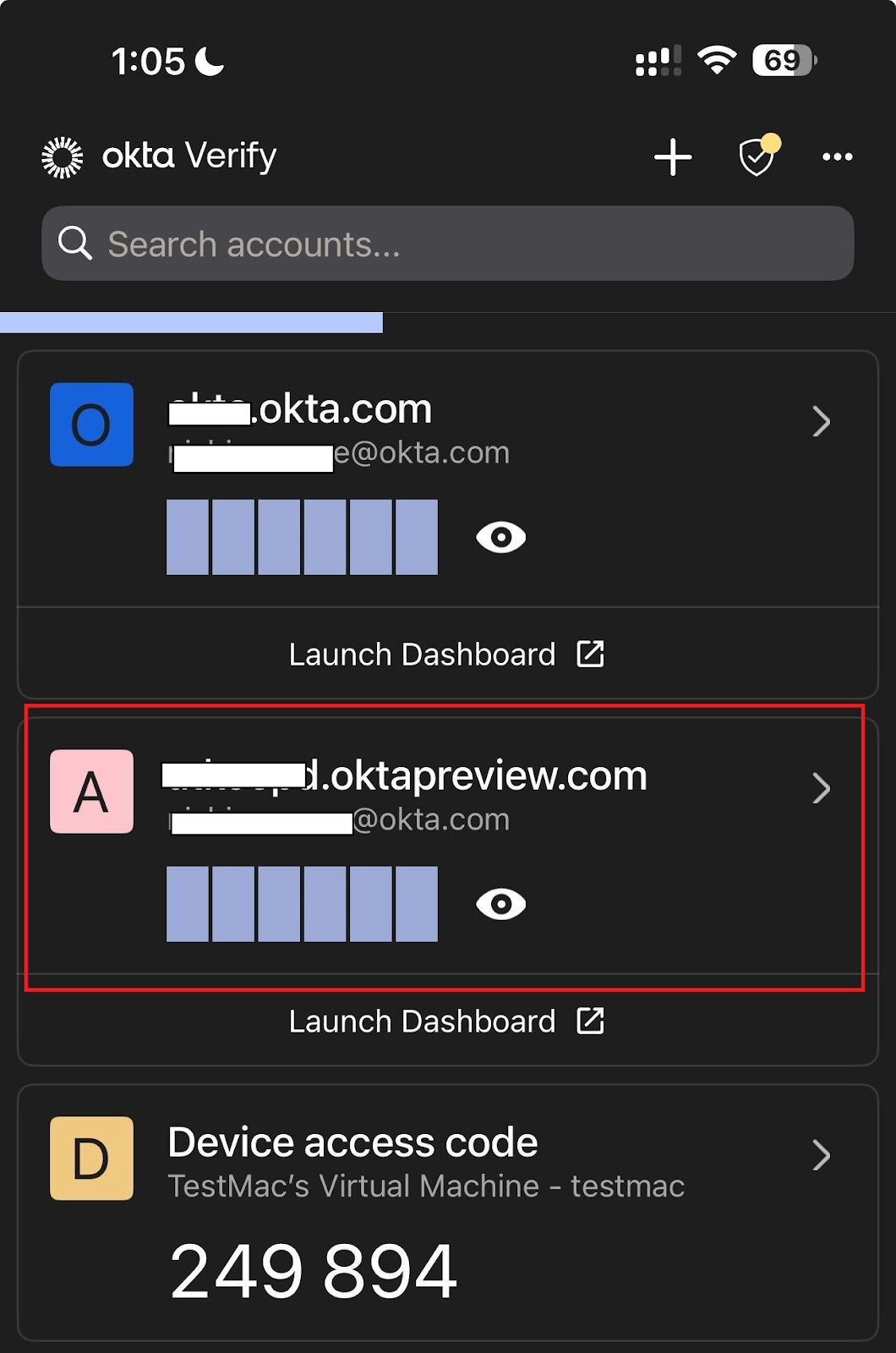
When the Okta Verify code fails, Okta generates a FAILURE : user_not_assigned event in the System Log if the user lacks assignment to the Desktop MFA application. Verify the correct code and application assignment by checking the account origin and the application assignment.
- Ensure the Okta Verify code originates from the account associated with the organization URL.
- Verify the Desktop MFA application assignment for the user if the code is correct.
What causes the device access code to be incorrect?
A failure indicating an incorrect code occurs when the user selects the wrong Okta Verify account or the computer clock loses synchronization. Resolve the incorrect device access code error by verifying the account origin and the system time.
- Ensure the code originates from the Okta Verify account labeled Device access code, which includes the Device Name or serial number, rather than the account with the organization URL.
- Verify the computer time is correct. Time-based codes fail if a manual change or a power loss skews the computer clock, causing it to lose synchronization with the mobile device time.
Incompatible keys or rate limits cause device access key errors.
Users might encounter an error stating they lack setup keys, even when keys exist under Settings > Security Methods > Security Key or Biometric Authenticator.
Device access key
You don't have any keys set up.
Set up a Security Key on your Okta Dashboard or contact your admin for help.
This error occurs due to incompatible keys or an exceeded API rate limit. Review the following causes to determine the appropriate resolution.
- The configured keys are incompatible with Desktop MFA (for example, TouchID).
- Excessive clicks on the device access key exceed the API rate limit. Wait one minute and attempt the authentication again.
Alternatively, users might encounter an error prompting them to insert a key, even when a key connects to the USB port.
Device access key
Insert a key into your Mac's USB slot.
This error occurs because macOS USB restriction mode prevents key detection. Allow the key to connect after logging in, so it can be used for Desktop MFA on subsequent attempts.

