Okta Privileged Access Troubleshooting Tips
Last Updated:
Content
This article provides information on how to troubleshoot errors during the implementation of Okta Privileged Access.
Table of Contents
Errors
Error: Okta Privileged Access Policy does not work
Error: Connection closed by remote host OR Connection closed by UNKNOWN port 65536
Error : Failed to load configuration file, continuing with defaults" err="While parsing config: yaml: unmarshalerrors:\n line 1: cannot unmarshal !!str Canonic... into map[str]
Error: rpc error: code = Unavailable desc = connection error: desc = “transport: Error while dialing dial tcp
Error: Server will not register in Okta Privileged Access.
Error: The server’s authentication policy does not allow connection requests using saved credentials. Error: This is RedHat/CentOS, Gateway fails to start. Errors out with status = FAILURE.
Commands to help with troubleshooting
Check version of Server Agent running on the box
Check the Server Agent Status
Start/Stop Server Agent
Enable debugging on the sft client
Disable debugging on sft client
Errors
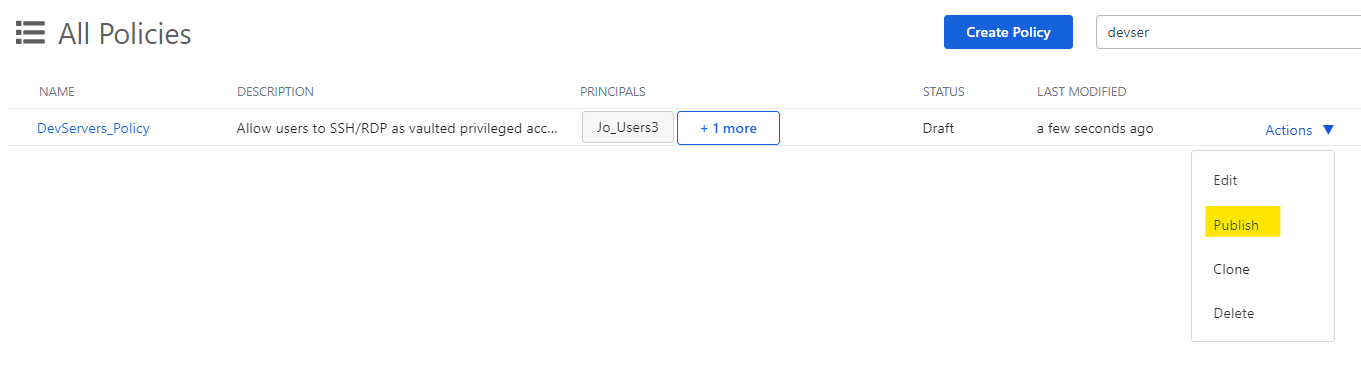
Error: Okta Privileged Access Policy does not work
Most likely, the policy that has been created is still in Draft mode. It needs to be published in order to take effect.
Error: Connection closed by remote host OR Connection closed by UNKNOWN port 65536
This error has nothing to do with server resolution or ports. Most likely, this is due to not having any managed accounts in the resource groups or policies.
Solution
- No managed accounts in the resource groups or policies
- Solution: Add valid vaulted accounts to the policy and make sure the Policy is published (not in a Draft state)
- Password value not set to true in /etc/sft/sftd_config (this applies to Linux servers)
-
- Solution: Edit the /etc/ssh/sshd_config and modify or add the following line:
Restart the SSH server for the new configuration to take effect:
NOTE: Ensure the latest SFT client version is used, as older versions can lead to similar errors:
Error : Failed to load configuration file, continuing with defaults" err="While parsing config: yaml: unmarshalerrors:\n line 1: cannot unmarshal !!str Canonic... into map[str]
Syntax error often in the sftd.yaml file.
Solution
Add appropriate space after “:”. For example, CanonicalName: <Servername>.
Ensure there is a “space” before the servername.
Error: rpc error: code = Unavailable desc = connection error: desc = “transport: Error while dialing dial tcp
Port 4421 is not being allowed between the client and the server. Only applies to RDP.
Solution:
Allow inbound traffic via 4421 on the target server.
Error: Server will not register in Okta Privileged Access
While attempting to register a server again, if it doesn’t enroll within the Okta Privileged Access.
Solution
For Windows
- Stop the scaleft service (ScaleFT Server tools).
- Delete the C:\Windows\System32\config\systemprofile\AppData\Local\ScaleFT\state folder.
- Start the scaleft service.
For Linux
- Stop the server agent (sftd service).
- Delete the state files in the agent directory /var/lib/sftd.
- Restart the server agent.
Error: The server's authentication policy does not allow connection requests using saved credentials
On Windows servers. If you see this error message, you probably have a GPO that does not allow login using saved credentials.
Solution
The setting is called Always prompt for password during connection. This setting needs to be disabled.
Error: This is RedHat/CentOS, Gateway fails to start. Errors out with status = FAILURE
Solution
Check for spaces in the Gateway setup token. Follow the instructions on the Gateway Setup Help page.
Commands to help with Troubleshooting
Check the version of the Server Agent running on the box
On Linux:
sftd -v (or sftd –version)Note a double “-” before version. This command is run from the command line. You can also check the client (sft) and gateway (sft-gatewayd) versions using the same command line options.
On Windows
Navigate to the Control Panel > Programs & Features.
- Search for ScaleFT Server Tools.
- Check on the version. This will be displayed on the right.
Check the Server Agent Status
On Linux:
systemctl status sftdYou can also run a ps -ef | grep sftd command.
Start/Stop Server Agent
On Linux:
systemctl stop sftd

systemctl start sftd
On Windows
- Open services.msc.
- Locate the ScaleFT Server Tools service.
- Right-click on the ScaleFT service to start/stop
Enable debugging on the sft client
On Mac > command prompt
> export SFT_DEBUG=1
And / or
>export SFT_DEBUG_HTTP_REQUESTS=1
On Windows > command prompt
> set SFT_DEBUG=1
Disable debugging on the sft client
On Mac > command prompt
>unset SFT_DEBUG

>unset SFT_DEBUG_HTTP_REQUESTS
On Windows > command prompt
> unset SFT_DEBUG= (don’t provide any bit).
Run Server Agent trace on Server
On Linux
> journalctl -u sftd

