MFA Enrollment Policy - Optional Factors
Last Updated:
Overview
This article aims to guide Admins through the process of configuring Okta's Multi-Factor Authentication (MFA) enrollment policy, ensuring a secure and customized authentication experience. It points to when all factors are set as Optional, one of the factors must be chosen, but a user may choose between any of the allowed factor types.
Applies To
- Factor Enrollment
- Multi-Factor Authentication (MFA)
Solution
If all options in the Factor/Authenticator Enrollment policy are set to Optional, users can always manually select which authenticator they want to enroll in from the Okta Dashboard. However, forced enrollment by the Okta Engine will depend on the configuration of:
- Which Okta Engine is in use: Okta Classic, or Okta Identity Engine
- Factor/Authenticator Enrollment Policy and Rules
- Sign-On Policy (Classic) | Global Session Policy (GSP - OIE)
- Application Sign-On Policy (ASOP - Classic) | Authentication Policy (OIE) Configuration
Okta Identity Engine (OIE)
Enrollment policy configuration:
|
Rule Name: |
A descriptive name for the rule. |
|
Exclude Users: |
If needed, exclude individual users of a group from the rule. |
|
IF user's IP is: |
Use the dropdown menu to specify where the user is challenged for authentication:
|
|
AND user is accessing: |
Select the rule to apply to:
|
|
THEN Enrollment is: |
When all the conditions of this rule have been satisfied, select one of these options to determine whether authenticator enrollment will be allowed or not:
|
As configured, End users will only be prompted to enroll in the Optional authenticators if the Global Session Policy (GSP) or an Authentication Policy (ASOP) explicitly requires an authenticator other than a password.
For example:
- If the GSP has MFA set to Required or if a session is established with an ASOP that requires an additional authenticator beyond the password, and the user has not yet enrolled in one, they will be prompted to enroll in an optional authenticator.
- However, if the GSP and all ASOPs only require a password, users will not be prompted to enroll in any additional authenticators by Okta Policy evaluation, and users may enroll manually through the dashboard.
NOTE: Users may still be required to enroll in email, security questions, phone, or Okta Verify, even if these authenticators are set as optional or disabled in the enrollment policy. This requirement may arise due to password policy configurations, including those related to Self-Service Password Reset (SSPR) and recovery.
For more information, refer to the relationship between enrollment and password policy relationship.
Okta Classic Engine
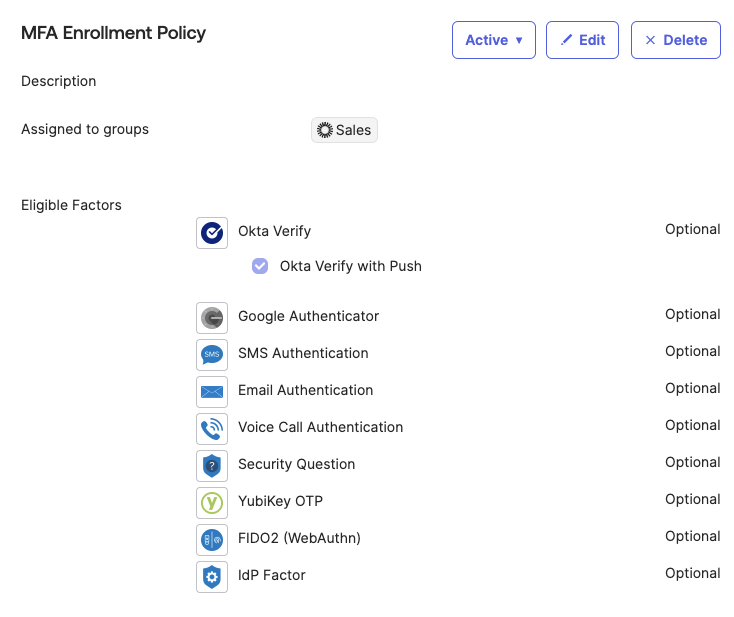
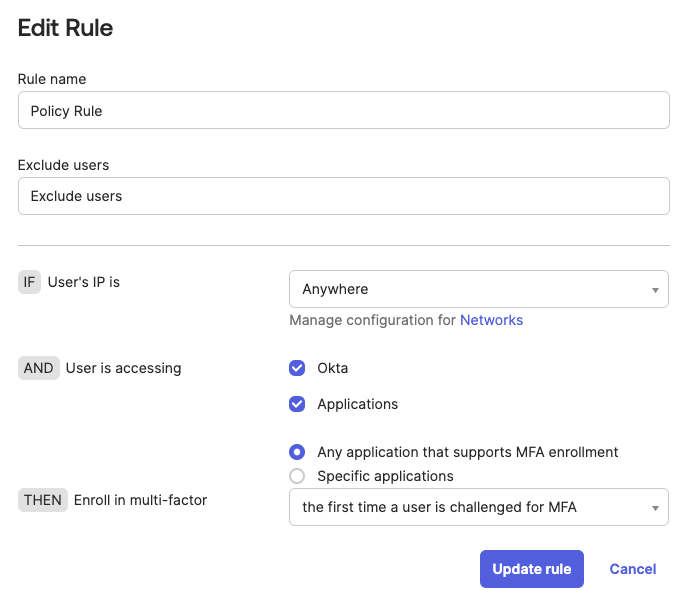
The options to enroll in a factor are:
- The first time a user is challenged for MFA.
- The first time a user signs in.
- Do not enroll.
The above options will determine when enrollment must take place. For this use case, having all the factors set to Optional and the Enrollment Policy rule allowing the user to enroll the first time they are challenged for MFA if there is no Authentication Sign On Policy or Application Sign On Policy that requires MFA, the user will not be prompted to enroll.
By having an Authentication Sign On Policy or an Application Sign On Policy that requires MFA, a user will be presented with all the optional factors to enroll and they will not be able to skip enrollment. Such, choosing one of the factors to enroll in is mandatory.
NOTE:
- If the Enrollment Policy rule is configured to prompt users to enroll during their first sign-in, they will be presented with all optional authenticators for enrollment. Users will not be able to skip the enrollment process, effectively making one of the authenticators mandatory.
- When the Email Authentication factor is set to Required or Optional as an Eligible factor in the MFA enrollment policy, the End users specified in the policy are automatically enrolled in MFA using the primary email addresses listed in their user profiles.

