How to Verify SCEP Profile Deployment to Desktop Devices for Device Management
Last Updated:
Overview
This article reviews how to verify Device Management SCEP Profile deployment and how to identify whether a certificate was issued.
In certain situations, issues with deployment may arise that require further inspection. This includes how to check inside the Mobile Device Management (MDM) for information on profile deployment, where to look in the target desktop to confirm the profile was successful, and whether a certificate was deployed.
Applies To
- Okta Identity Engine (OIE)
- Device Management (Formerly Device Trust)
- Simple Certificate Exchange Protocol (SCEP)
- Public Key Infrastructure
Solution
Validate Device Management SCEP Policies Were Received On The Device
Windows OS
The arrival of the policy for the profile is logged in a Windows device's DeviceManagement-Enterprise-Diagnostics-Provider > Admin log, with an event ID 306.
To open the log:
- On the device, run
eventvwr.mscto open Windows Event Viewer. - Expand Applications and Services Logs > Microsoft > Windows > DeviceManagement-Enterprise-Diagnostic-Provider > Admin.
- Look for Event ID 306, which resembles the following example:
Event ID:      306
Task Category: None
Level:         Information
User:          SYSTEM
Computer:      <Computer Name>
Description:
SCEP: CspExecute for UniqueId : (ModelName_<ModelName>_LogicalName_<LogicalName>_Hash_<Hash>) InstallUserSid : (<UserSid>) InstallLocation : (user) NodePath : (clientinstall)  KeyProtection: (0x2) Result : (Unknown Win32 Error code: 0x2ab0003).
Mac OS
The arrival of configuration policies is expected to be logged in MDM's own log, on the local machine. For example, Jamf holds a log named jamf.log on the local machine under the /var/log directory. Within the directory. When a Device Management configuration policy is issued to or updated for a target device, Jamf will log processing events locally, similar to:
Tue Apr 23 14:11:34 C02G6  jamf[343]: Checking for policies triggered by "startup" for user "oktalab.user"...
Tue Apr 23 14:30:51 C02G6  jamf[1763]: Checking for policies triggered by "recurring check-in" for user "oktalab.user"...
Tue Apr 23 14:30:55 C02G6  jamf[1763]: Executing Policy Configuration Enforcement - Okta Device Management
Tue Apr 23 14:31:05 C02G6  jamf[2050]: Checking for policies triggered by "Okta Device Management" for user "oktalab.user"...
Tue Apr 23 14:31:08 C02G6  jamf[2050]: Executing Policy
Alternative to searching for and identifying a log, or instead of an MDM's local log:
- If the Configuration Profile was successfully delivered, a device management certificate should exist in the System Keychain. To validate the presence of a management certificate:
- Open System Preferences > Profiles > Keychain > Login.
- Verify that a client certificate and associated private key exist.
Verify SCEP Configuration Profiles Status in the MDM
Each MDM is different, and specific documentation should be referenced for accuracy. In brief:
MEM (InTune):
In the Microsoft Intune admin center, go to Troubleshooting + Support > Troubleshoot. On the Troubleshoot window, set Assignments to Configuration profiles and then validate the following configurations:
- Specify the user or group who should receive the SCEP certificate profile.
- Review the user's group membership to ensure they are in the security group used with the SCEP certificate profile.
- Review when the device was last checked in with Intune.
Jamf Pro - Viewing the Status of a Configuration Profile:
For each configuration profile, view the number of deployment targets with a status of Complete, Remaining, or Failed for the profile installation.
NOTE: Depending on the system configuration, status data may not be available for profiles installed using Jamf Pro 9.63 or earlier.
- In Jamf Pro, click Computers or Devices in the sidebar.
- Click Configuration Profiles in the sidebar.
- To view a list of deployment targets with a status of Complete, Remaining, or Failed for the profile installation, click the number displayed in the corresponding column. Then click Back in the top-left corner of the pane.
- To view logs for a configuration profile, click View in the corresponding row. For a different date range, specify the starting and ending dates using the Date Range pop-up calendars.
- Click Back in the top-left corner of the pane.
Verify Client Certificates Issued and Bound to Device at the System Log
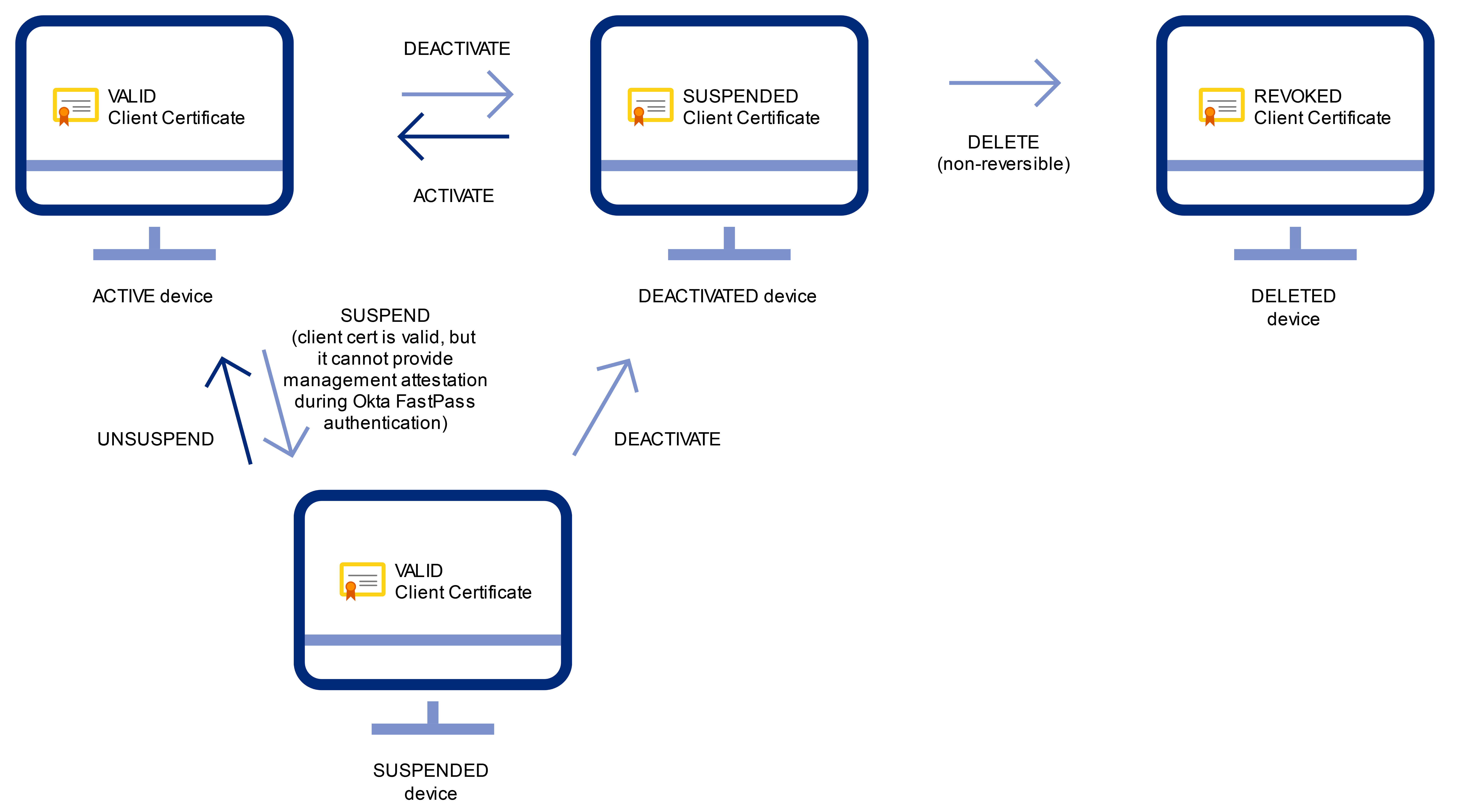
Reference: Client certificates
If the client certificate has been successfully issued, "Issue client certificate" can be found in the system log, and if the certificate is bound to the device, "Bind client certificate to device" can be found.
events for "Issue client certificate" : eventType eq "pki.cert.issue"events for "Bind client certificate to device" : eventType eq "pki.cert.bind"
Related References
For more details on finding Device Management certificates:

