How to Manage a Support Case
Last Updated:
Overview
This article details how to manage a support case on the Okta Support Center.
Applies To
- Okta Support Center
Solution
Viewing Cases
- Log into the Okta Admin Dashboard
- Select the option under Resources for Help Center to access the Okta Support Center.
- Select the option for My Cases that displays under the Account Dropdown
- This defaults to the My Open Cases view and will display a list of open cases where you are the case owner
- Filter options are available to allow for filtering based on open cases or all cases where you are the case owner. You can also perform a search based on a specific case number.
- Select the case number to review the case details.
NOTE: Starting June 1st, 2024, an Admin must have the new Case Admin Permission in order to be able to enter and manage cases on the Okta Support Center.
Case Details
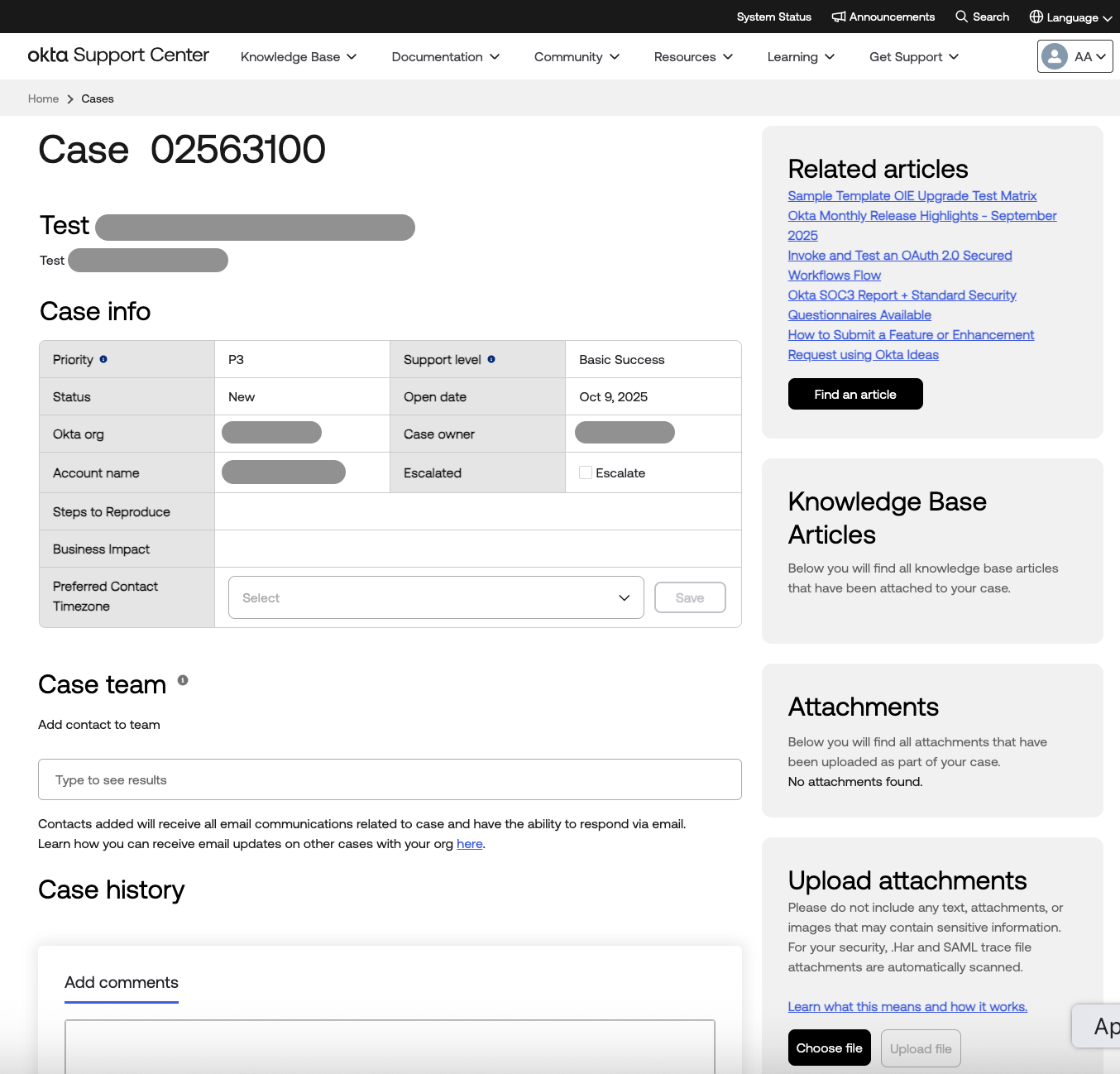
The case details page allows for reviewing all the information about the case. The table below details the sections and information displayed within each section.
| Section | Description |
|---|---|
| Case Info | Provides general information about the case, including the Priority Support level, Status, and Case owner. |
| Case team | Additional Okta admins from your org can be added to the Case team to receive notifications on the case. |
| Case history | Shows the history and communications with the support engineer on the case. |
| Related articles | Displays related Knowledge Base Articles to review in order to find a solution for your case. The Find an Article option is also available to perform a knowledge base search. |
| Attachments | Displays file attachments that have been uploaded to the case. If an attachment should be removed from the case, please contact support for assistance. NOTE: On the 8th day after a case is closed, any associated files attached to the case will be deleted for security purposes. |
| Upload Attachments | Provides the ability to upload additional attachments to the support case. |
| Knowledge Base Articles | Displays any Knowledge Base Articles attached to the case by the support engineer. |
Adding or Removing Team Members to a Case
Use the Case team field to add or remove additional contacts to the case. Additional contacts on a case must be an Okta Admin on the Org. These contacts added to the team will be able to send and receive email communications related to the case.
NOTE: Unless defined as an Elevated Support Contact, an Admin can only review their own cases on the Okta Support Center.
Managing Case Access
As of May 1st, 2024, functionality was introduced to provide enhanced capabilities to manage case access. A Case Admin Permission and Elevated Support Contact are available for customers to assign and control who has access to view, create, and update cases on the Okta Support Center. Refer to New Case Admin Permission and Elevated Support Functionality on the Okta Support Center for more details.
In order to enter and manage cases on the Okta Support Center, Admins will be required to have the new Case Admin permission. This permission is assigned by default to Super Admins. For details on defining the Case Admin Permission, refer to Assigning the Case Admin Permission to Okta Admins.
Related References
- How to Create a Support Case
- Information to Provide when Opening a Support Case
- How to Escalate a Support Case
- New Case Admin Permission and Elevated Support Functionality on the Okta Support Center
- Assigning the Case Admin Permission to Okta Admins
- Adding Elevated Support Contacts on the Okta Support Center
- Approving a Read Only Impersonation Access Request for a Support Case
- Approving a Support Access Grant for a Self-Assigned Case

