Error when Setting-Up a New Device - Page for O365 Not Opening
Last Updated:
Devices and Mobility
Okta Identity Engine
Overview
This article addresses the situation in which a user goes through the setting up process of a new device through Windows Hello and afterward tries to sign in to Office 365, but the page is not visible as expected.
Applies To
- Okta Identity Engine (OIE)
- Office 365
- Sign-In Widget (SIW)
Cause
- *okta.com not being on the server's trusted websites
- Third Generation Sign-In Widget being used
Solution
If the above screen appears, try the following:
-
Make sure that *okta.com is one of the server's trusted websites.
The embedded browser is Internet Explorer-based, and the changes for Windows devices must be made in the Internet Options section; for allowlisting a website, use the following steps:
a.Navigate to the Windows icon located in the bottom-left corner of the screen.
b.Search for Internet Options and select Security from the pop-up window that appears.
c.Then, select Trusted sites and add *.okta.com (for production tenants ), *.oktapreview.com (for preview tenants ), or *.okta-emea.com (for EMEA tenants).
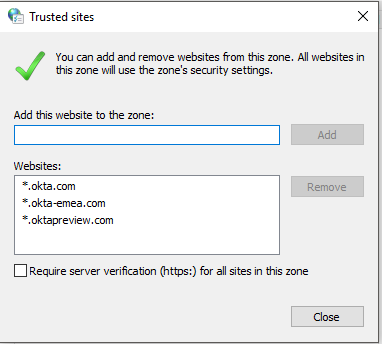
b.Search for Internet Options and select Security from the pop-up window that appears.
c.Then, select Trusted sites and add *.okta.com (for production tenants ), *.oktapreview.com (for preview tenants ), or *.okta-emea.com (for EMEA tenants).
If the above step to allow-list okta.com did not solve the issue, this issue may alternatively be caused by the Third Generation Okta Sign-In Widget (SIW).
-
To Disable the third-generation Sign-In Widget.
In the Admin Console, go to Customizations > Brands.
- Select a brand.
- Go to the Pages tab, and then click Configure for the Sign-in page.
- Click the Settings tab.
- In the Sign-In Widget version section, click Edit.
- Toggle the Use third generation switch so that it is deactivated (As shown in the example below).
- Click Save to draft.
- Click Publish.

